RustInfo — Discord Bot for Rust+ Complete guide to Commands
Professional Discord bot for Rust server monitoring and device management via Rust+
Welcome to RustInfo
Powerful tool for managing Rust servers directly from Discord
Real-time monitoring
Track server status, player count and load with updates every 10–30 seconds
Smart notifications
Get instant alerts when tracked players join or leave the server
Device management
Control smart switches and other Rust+ devices remotely from Discord
Server Monitoring
Full control over your Rust server
Real-time tracking
- Server status
Instant information about server availability
- Online players
Current player count and slot limit
- Server load
Performance and load percentage
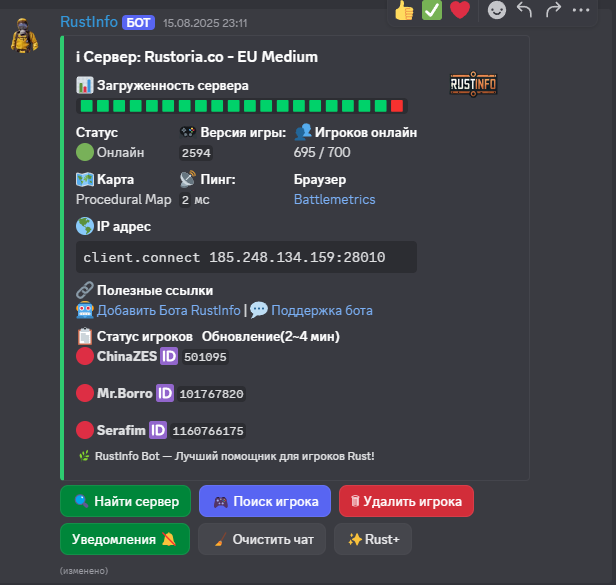
Player search
Quick search for any player by name on the selected server
Player status
List of tracked players with online/offline status (updated every 2–4 minutes)
Notifications
Enable (+) or disable (-) player activity alerts
Rust+ Commands
Manage your devices and monitor your server through Discord
.helpDisplays the full list of available commands with brief descriptions
Command list:
.help — Help.pop — Server population.time — Server time.afk — AFK players.mark — Position marker.add — Add device.remove — Remove device.devices — Device list.sw — Switch control.events — Active events.cargo — CargoShip status.ch47 — CH47 status.patrol — PatrolHeli status.crate — Crate status.deepsea — DeepSea status.crash — Crash location.lang — Chat language.prefix — Chat prefix.popShows current server population information
Displayed information:
- Current number of players online
- Maximum slot count
- Queue size

.timeShows in-game time and countdown to sunrise/sunset
Time information:
- Current in-game server time
- Time until sunrise (minutes)
- Time until sunset (minutes)

Before adding a device with .add, you must first pair it in the Rust+ mobile app!
.add <device_name>Adds a smart device to the bot database for remote control
How to use:
- Pair the device in the Rust+ app and give it a name
- Run the command:
.add device_name - Receive a confirmation of successful addition
.add main_light
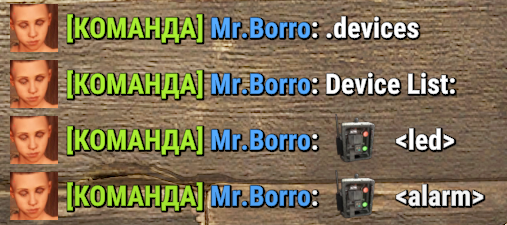
.devicesShows a list of all connected devices with their current state
Displayed data:
- Device name
- Device type
- Current state (on/off)
.remove <name | all>Removes one or all devices from the bot database
Usage options:
.remove device_nameRemoves a specific device
.remove allRemoves all devices
.remove turret.remove all.remove all will delete all your devices with no way to recover them!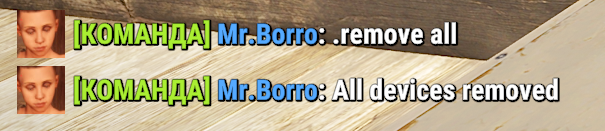
.sw <device> <0|1>Remote control of smart switches
Command parameters:
device_nameName of your device
1Turn device on
0Turn device off
.sw turret 1 — Turn on.sw turret 0 — Turn off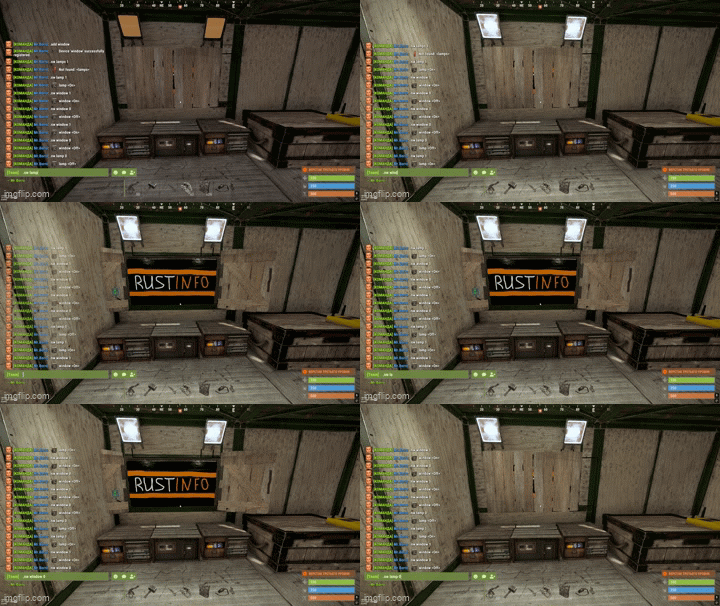
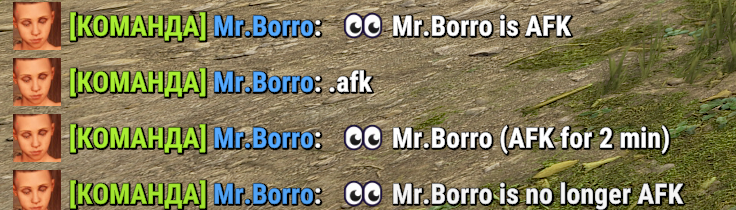
.afkShows a list of teammates who have not moved for a long time
Displayed data:
- Player name
- Idle time
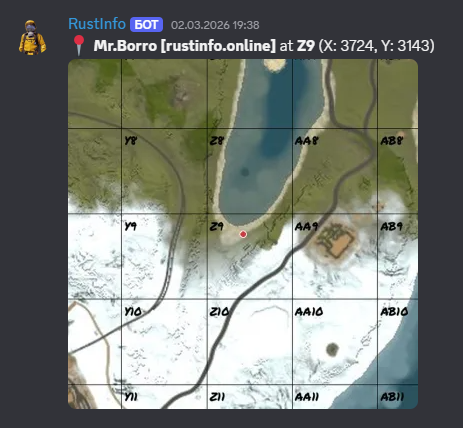
.markSends your current map grid square to in-game chat and the Discord Alerts channel with a map crop
Displayed data:
- Player name and map square (e.g. B7)
- Map crop with red dot — sent to Discord Alerts channel
The following commands show the current status of in-game events: whether the event is active and in which map square.
.eventsShows all currently active server events in one message
Tracked events:
- CargoShip — cargo ship
- CH47 — Chinook
- PatrolHelicopter — patrol helicopter
- Crate — locked crate from helicopter
- DeepSea — deep sea event
.events instead of individual commands — shows everything in one message.cargoShows the current status of the CargoShip event (cargo ship)
- Whether CargoShip is active on the server
- Current map square
.ch47Shows the current status of the CH47 event (Chinook)
- Whether CH47 is active on the server
- Current map square
.patrolShows the current status of PatrolHelicopter (patrol helicopter)
- Whether PatrolHeli is active on the server
- Current map square
.crateShows the status of the Locked Crate — the crate dropped by a helicopter
- Whether Crate is active on the server
- Current map square
.deepseaShows the status of the DeepSea event (deep sea)
- Whether the DeepSea event is active
- Underwater event status
.crashShows the map square where the PatrolHelicopter crashed
How it works:
- Checks live markers for an explosion
- If the marker disappeared — uses the last saved location from cache
- Returns the map square (e.g. D5)
Bot in-game chat settings. Changes apply to your entire guild.
.lang <ru|en>Switches the language of bot responses in the Rust in-game chat for your guild
Usage options:
.lang ruSwitch to Russian
.lang enSwitch to English
.lang ru.lang en.prefix <text>Changes the prefix the bot adds to each message in in-game chat
Parameters:
- Any text up to 20 characters
- Default:
[rustinfo.online]
.prefix [BOT].prefix [MyServer]Discord Commands
Commands for use in Discord channels
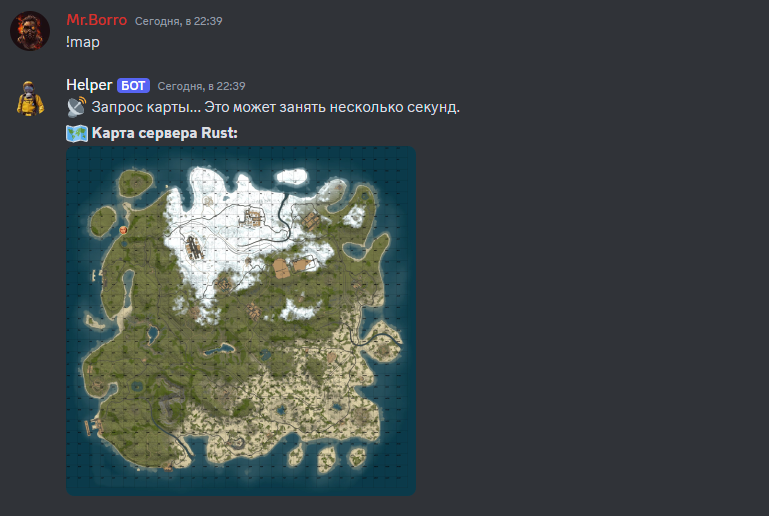
!mapShows the server map with teammates' positions displayed
Displayed data:
- Full game server map
- Positions of all teammates on the map
- Map grid squares
!info <monitor name>Shows the contents of a box or cupboard connected as a resource monitor
Displayed data:
- Item list with quantities
- Item icons
- Tool cupboard protection time (if applicable)
!info my_box.add command in in-game chat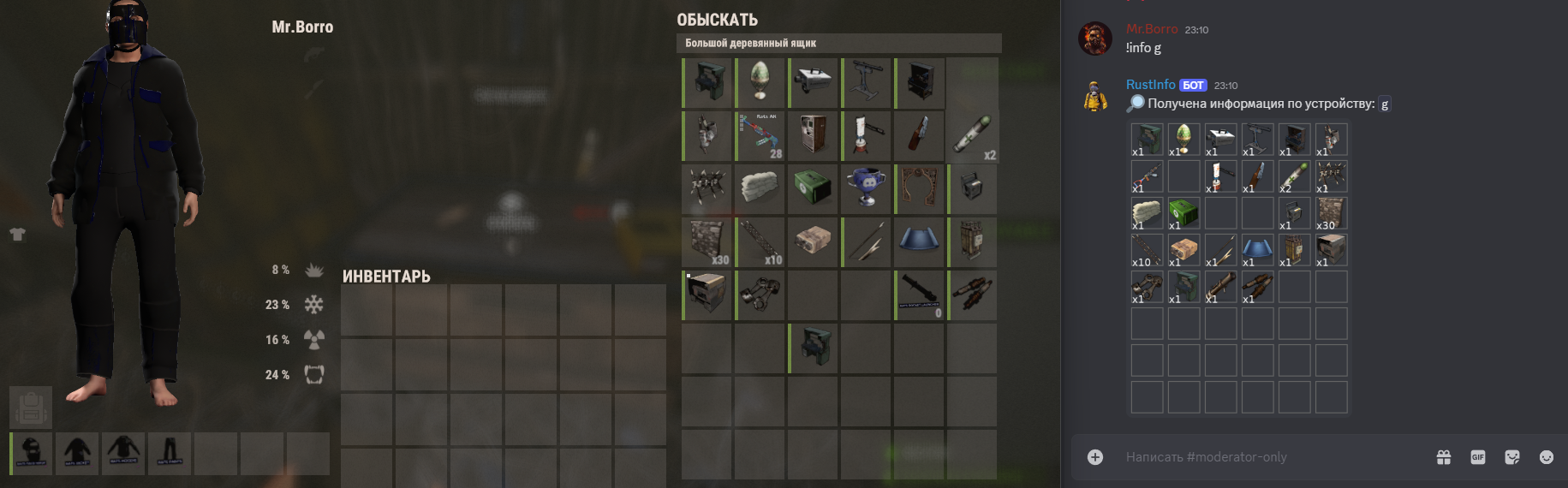
Frequently Asked Questions
Answers to common questions about RustInfo
How do I start using Rust+ commands?
To connect the bot, read the Setup guide.
Why don't commands work? .time .pop .add etc.
Make sure the bot is connected correctly and the message Connected was sent in chat
Did you remember to create the command?
The bot only works in team chat
The default command prefix is . (period)
How often is monitoring data updated?
Server data is updated every 10–30 seconds. Tracked player status is updated every 2–4 minutes to optimize server load.
Can I manage multiple servers?
Yes, RustInfo supports monitoring and managing multiple servers simultaneously. You can switch between them in Discord.
Is it safe to give the bot access to Rust+?
Yes, the bot uses the official Rust+ API and does not store your credentials. All connections are encrypted. You can revoke access at any time via the Rust+ app.
What if a device does not respond?
Check your Rust server connection. Make sure the device still exists in-game and is properly paired. Try removing it with .remove and adding it again.