Bot Setup
Follow these instructions to connect the RustInfo bot
🚀 Getting Started
To fully use Rust+ features, you'll need Google Chrome browser and a few simple setup steps.
Authorization and bot invite
First open the authorization page, sign in with Discord, and invite RustInfo to your server. Then continue with the next step.
Start Using the Bot
Type the !setup command in any channel of your Discord server to start using the bot.
Install Chrome Browser
You'll need Google Chrome browser to work with the Rust+ extension.
Install Browser Extension
Install the official Rust+py Link Companion extension from the Chrome Web Store.
Install Extension →Authorize on Facepunch Website
After installing the extension, you need to authorize on the official Facepunch Companion website.
Go to Facepunch Website →Copy Connection Data
After authorization on the Facepunch website, click the Copy information button to copy the data.
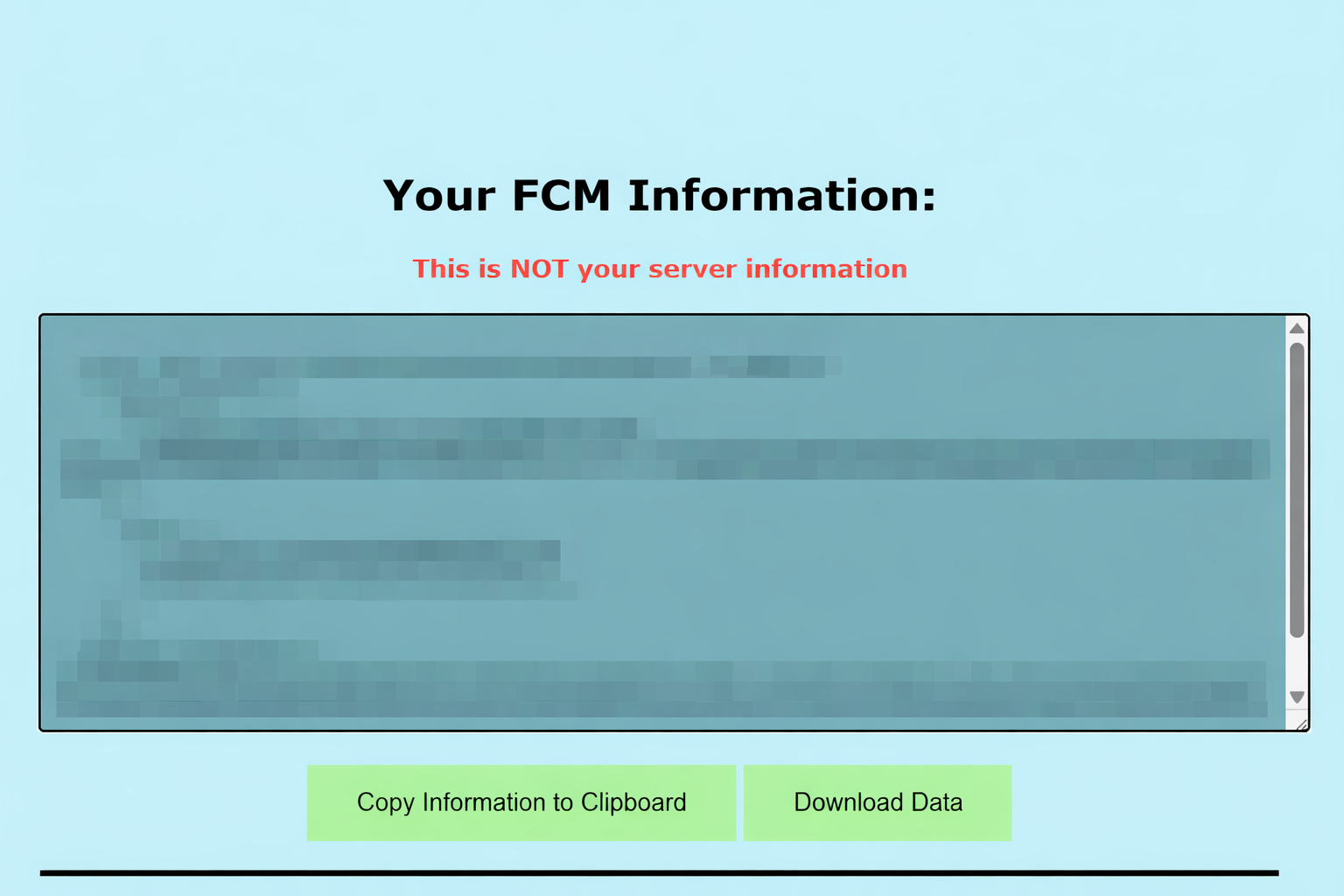
Connect to Bot
Click the Rust+ button in the bot menu and paste the copied information from the previous step.
💡 Important:
Find the Rust+ button in the bot menu and paste the copied data to complete the connection.

In-Game Pairing
Join the server. Press Esc at the top of the screen, select Current Server and click Pair.
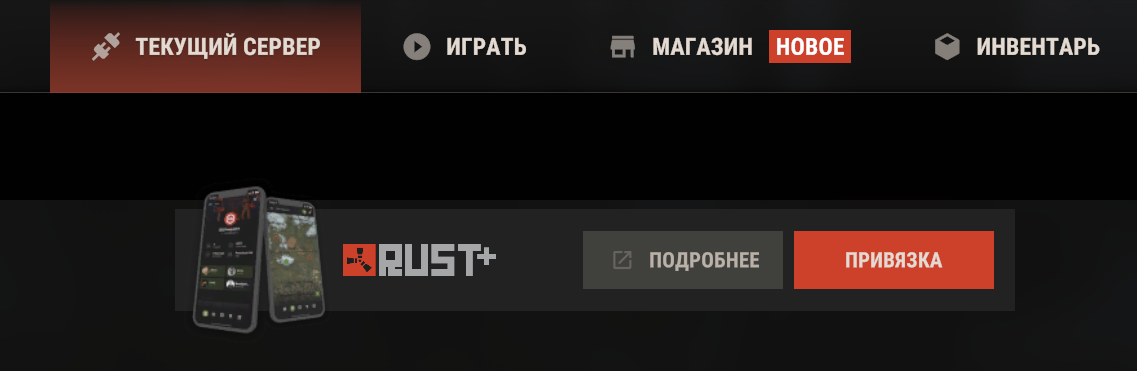
Connection Confirmation
After successful connection, you'll see a message from the bot. Within a minute, you'll be able to start using the bot.

✅ Done!
Now you can use all Rust+ features through the Discord bot. For a list of commands, use .help